HubSpot Integration
Keep HubSpot as the system of record while WarmGTM handles signal discovery and outreach — prospects, activity, and reply status sync automatically.
What WarmGTM sends into HubSpot
- New or updated contact records for prospects WarmGTM has qualified through social signals
- Outreach activity — connection requests, messages sent, and campaign steps — logged as timeline engagements on the matching HubSpot contact
- Reply status, so a positive reply in WarmGTM appears on the HubSpot contact timeline without manual entry
- A property or list update on qualified contacts so they become eligible for your existing HubSpot workflows to enroll them
What WarmGTM reads from HubSpot
- Existing contact records and the properties you've mapped, so WarmGTM can match prospects to contacts that already exist and avoid creating duplicates
- The field mapping you configure during setup, so contact properties stay aligned between both systems
HubSpot objects involved
| Object | Access | What happens |
|---|---|---|
| Contacts | Read & write | Created or updated as WarmGTM qualifies prospects and keeps records in sync in both directions. |
| Engagements / Timeline | Write | Outreach touches and replies are logged as timeline activity on the relevant contact. |
| Workflows | Not created or edited | WarmGTM doesn't create or modify HubSpot workflows. Updating a contact's property or list membership can make it eligible for workflows you've already built in HubSpot. |
Sync direction and timing
Contact records sync two-way between WarmGTM and HubSpot. Outreach activity and reply logging sync one-way, from WarmGTM into the HubSpot timeline. Syncing happens automatically once connected — there's no manual export step.
Who can connect it
A WarmGTM workspace admin connects HubSpot from the CRM Integration screen and authorizes access via HubSpot's own OAuth permission screen.
Which plans include it
The HubSpot integration is included on every WarmGTM plan, including AI Outreach ($69) and Scale ($499), at no extra cost.
View pricingHow to disconnect it
Disconnect from the HubSpot Accounts screen at any time. WarmGTM stops syncing immediately and deletes its stored HubSpot access and refresh tokens. Records already written to your HubSpot account are yours and are not deleted by WarmGTM on disconnect.
Confirming the last details with engineering — the full HubSpot OAuth scope list and exact post-disconnect data-retention window will be published here shortly. In the meantime, reach out to integrations@warmgtm.com with any specific questions.
Connect WarmGTM to HubSpot.
A step-by-step walkthrough of installing, connecting, configuring, and disconnecting the WarmGTM–HubSpot integration.
1. Install
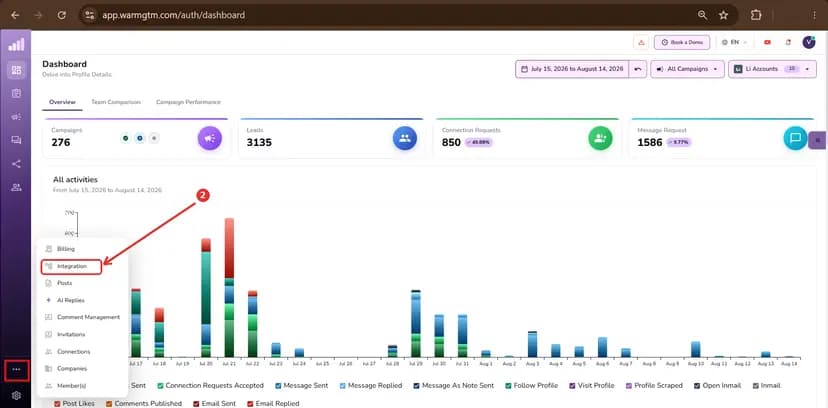
Sign in to WarmGTM at app.warmgtm.com. The HubSpot integration is available on every WarmGTM plan, so no upgrade is needed before you start. Open the ••• (more) menu at the bottom of the left sidebar and select Integration to get there.
2. Connect HubSpot
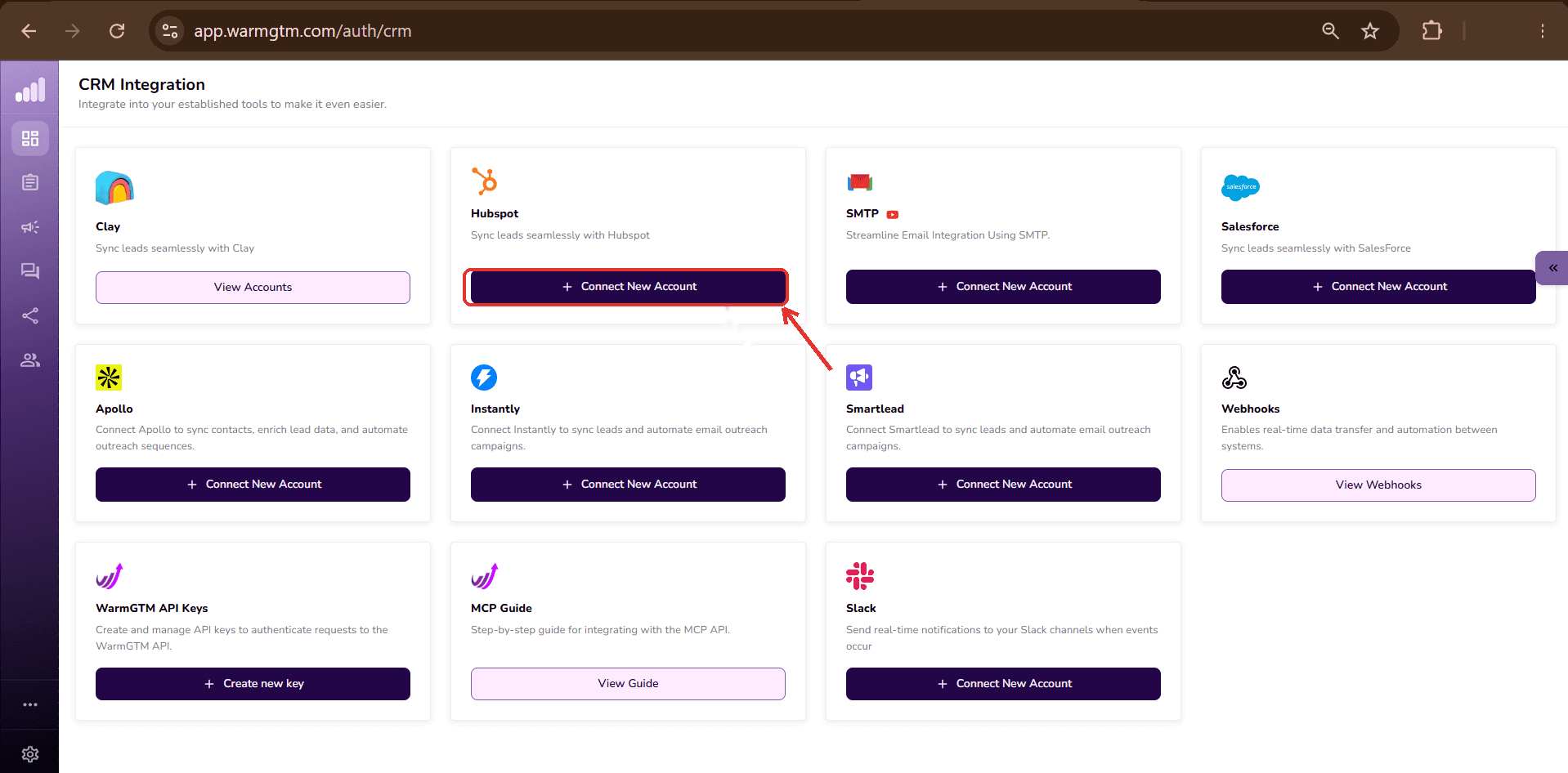
The ••• menu opens the CRM Integration screen, which lists every available integration — Clay, HubSpot, SMTP, Salesforce, Apollo, Instantly, Smartlead, Webhooks, and more. Find the HubSpot card and click Connect New Account.
3. Approve permissions
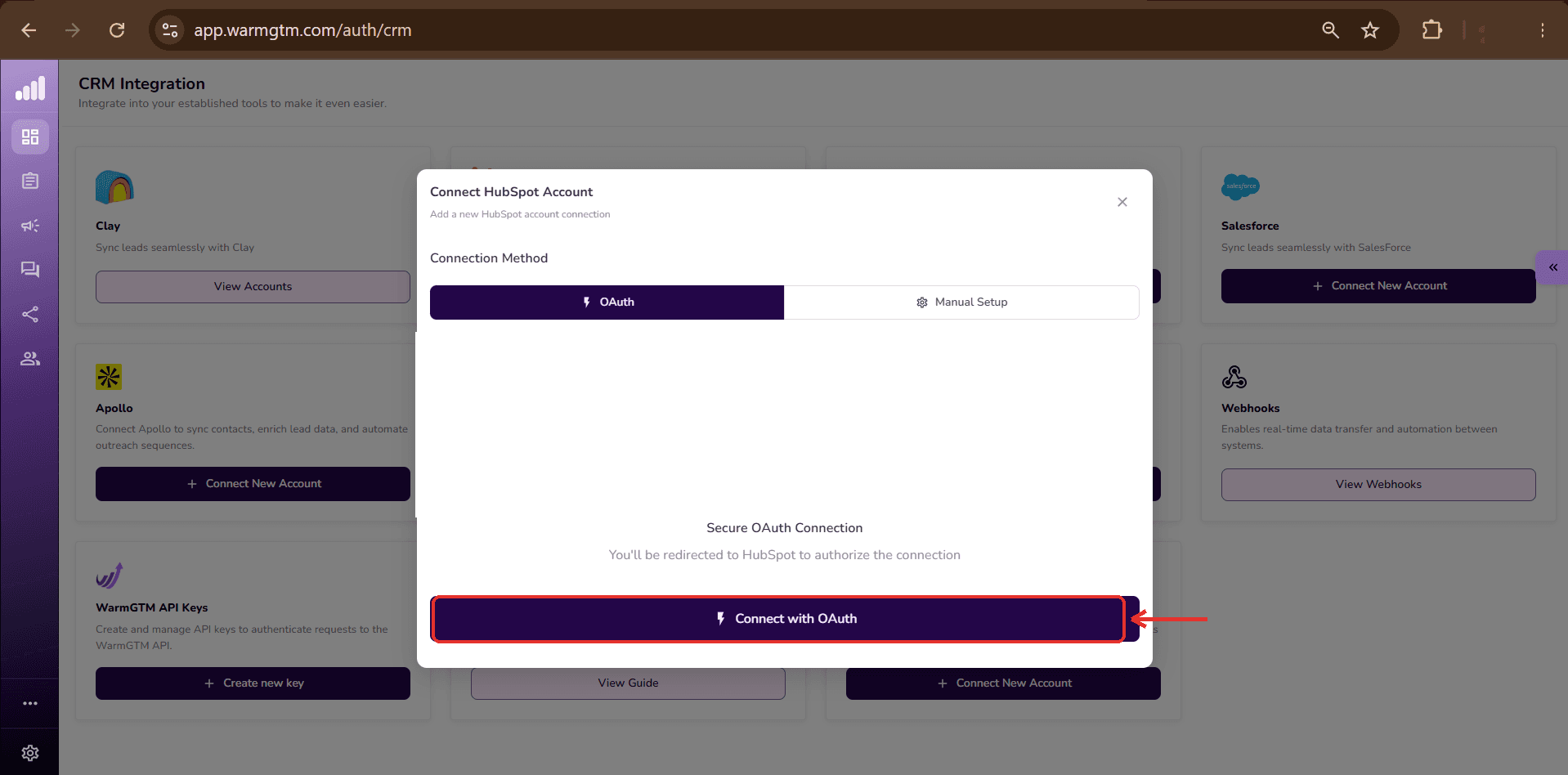
Clicking Connect New Account opens the Connect HubSpot Account dialog with two connection methods: OAuth (recommended) or Manual Setup. Choose OAuth and click Connect with OAuth. You're redirected to HubSpot's own hosted permission screen, which lists exactly what WarmGTM is requesting access to — review the requested scopes and approve to authorize the connection. You can revoke this authorization at any time from your HubSpot account's Connected Apps settings.
Screenshot: HubSpot's own OAuth permission screen listing requested scopes — pending upload.
4. Configure
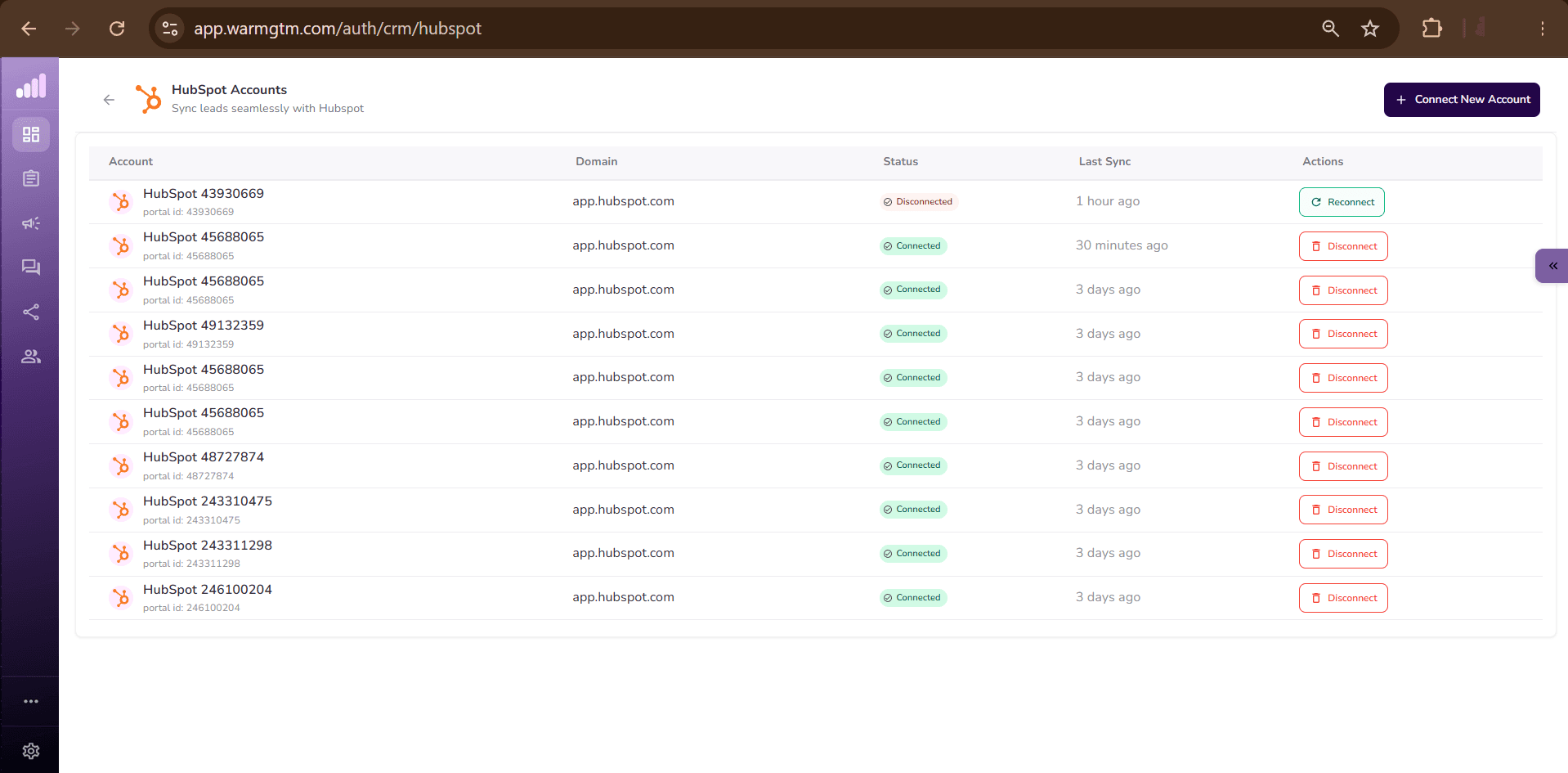
Once authorized, the connected portal appears on the HubSpot Accounts screen, listing the account name, HubSpot portal ID, domain, connection status, and last sync time. WarmGTM supports connecting more than one HubSpot account at once — each is authorized and managed independently.
5. Use the integration
Once connected, WarmGTM keeps contact records in sync in both directions, logs outreach activity and replies on the HubSpot contact timeline, and updates qualified contacts so they become eligible for the HubSpot workflows you've already built. No manual export step is required.
6. Disconnect
From the HubSpot Accounts screen, click Disconnect in the Actions column for that portal. Its status changes to Disconnected, and WarmGTM immediately stops syncing new data and deletes its stored HubSpot access and refresh tokens for that account. A disconnected account can be reconnected later without losing its configuration.
7. Uninstall
Disconnecting in WarmGTM removes WarmGTM's access from your side. To fully remove the app from HubSpot, also remove it from HubSpot's Connected Apps settings in your HubSpot account.
8. What happens to synced data after disconnect
Records WarmGTM already wrote to your HubSpot account — contacts, properties, and logged timeline activity — are your data and remain in HubSpot; WarmGTM does not delete them on disconnect. WarmGTM stops writing or reading any further data the moment the integration is disconnected. Questions about data retention on WarmGTM's own side can be sent to privacy@warmgtm.com.
HubSpot integration FAQ
Everything you need to know before connecting WarmGTM to HubSpot.
Stop sending cold outreach.
Start conversations with people already showing intent.
No cold lists, no guesswork — just outreach timed to people who are already showing interest in what you do.
Catch Signals.Build Familiarity.Reach Out.